How to Reset a Samsung Dryer: A Practical Guide
Learn how to reset a Samsung dryer with step-by-step instructions, safety tips, and maintenance advice to prevent future issues. Easy DryVent provides practical guidance for homeowners and DIY enthusiasts seeking reliable dryer troubleshooting.


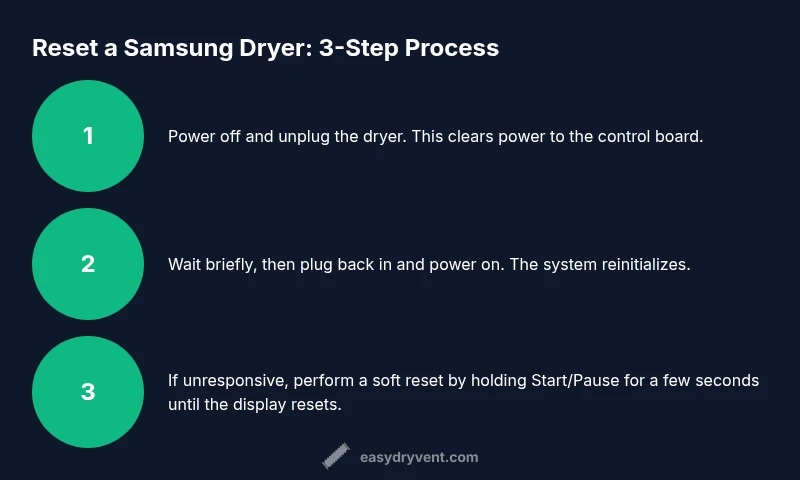
To reset a Samsung dryer, start by turning the dryer off and unplugging it from the wall. Let it sit for a moment, then plug it back in and power it on. If the display remains unresponsive, perform a soft reset by holding the Start/Pause button for several seconds until the screen clears, then run a test cycle to confirm normal operation.
What Resetting Does for Samsung Dryers
A reset is a way to clear transient glitches in the dryer's control system and restore normal operation after a minor software hiccup. When a dryer displays error codes, becomes unresponsive, or stops mid-cycle without an obvious mechanical fault, a reset can reinitialize the electronics and memory so that the appliance can start again with a clean slate. According to Easy DryVent, most resets address temporary faults in the control module or sensor readings rather than technical failures in heating elements or ventilation. This makes reset procedures a safe, first-line troubleshooting step for homeowners and DIY enthusiasts who want a low-risk correction before calling for service. The idea is to restore a known-good state without disassembling the unit. Note that a reset does not fix underlying hardware problems, such as a clogged vent or a failing thermal fuse, which require targeted maintenance or professional service. Easy DryVent Team emphasizes that resets are most effective when used as part of a broader diagnostic approach rather than as a guaranteed fix for all issues.
Soft Reset vs Hard Reset: When to Use Each
There are two broad reset concepts to understand: soft resets and hard resets. A soft reset reinitializes the dryer’s control electronics without altering firmware or memory structures. It is usually done by a simple power cycle (unplugging briefly and reconnecting) or by a limited button sequence specified in the manual. A hard reset, in contrast, may involve more extensive steps and is used when a soft reset does not resolve the problem. For Samsung dryers, a soft reset is often sufficient for transient issues like a stuck display or unresponsive controls. The Easy DryVent Team notes that many control-board glitches resolve with a soft reset, while persistent symptoms—such as repeated error codes after reset—suggest a deeper issue that merits professional evaluation. When attempting any reset, ensure the appliance is completely powered down and that there is no heat or moisture exposure on the control panel. A reset should always be performed with the dryer unplugged before reassembly or reattachment of any panels.
Step-by-Step Soft Reset Process (Model-Agnostic)
This section provides a model-agnostic approach that works for most Samsung front-load and some top-load dryers. If your model specifies a different sequence, consult the user manual for model-specific steps.
- Power off and unplug the dryer. Disconnect from the electrical outlet to ensure zero power. This is the essential first step to stop all active circuits and reset the memory safely. Tip: If you have a surge protector, unplug the entire unit from the wall, not just the surge strip.
- Wait a short period. Allow any residual power to dissipate and the control memory to clear. A brief pause reduces the chance of immediate re-entry of a fault. Tip: Use a timer so you don’t rush the pause.
- Plug back in and power on. Reinsert the plug and restore power, then turn the dryer on without loading it. This reinitializes the control board and tests whether the fault reoccurs during normal operation. Tip: Start with a cold, empty cycle to verify basic functionality.
- Perform a soft reset if the display is still unresponsive. Some models require you to hold Start/Pause or a similar button for several seconds until the display clears or a reset confirmation appears. Tip: If you don’t see a change after several seconds, try releasing and retrying once.
- Run a test cycle with a small load. A short cycle helps confirm that the dryer runs, heats appropriately, and completes without error codes. Tip: Use the most basic setting (no heat) if you’re unsure about heat-related faults.
- Check for codes or messages. If codes appear again, document them and refer to the manual’s fault code table. Tip: Take photos of the error screen for future reference when contacting support.
When a Reset Isn’t Enough: Troubleshooting Next Steps
Resetting can clear many transient faults, but not all problems. If the dryer still fails to start, shows recurring error codes after a reset, or never completes a cycle, the issue could be venting problems, sensor faults, or a failing component such as a thermal fuse or heating element. Easy DryVent recommends a structured approach: verify the lint trap, clean the vent duct and exterior vent cap, inspect the door switch and wiring for damage, and ensure the drum rotates freely. If the problem persists, record all observed codes and symptoms and contact Samsung Support or a qualified technician. Persistent faults often require diagnostic testing with specialized equipment. Remember, safety comes first—never bypass safety interlocks or attempt to access live electrical components without proper precautions. The goal is to isolate the fault and determine whether a repair or replacement is warranted.
Maintenance Habits to Reduce the Need for Resets
Proactive maintenance reduces the likelihood of needing frequent resets. Keep the lint trap clean after every load, inspect and clean the vent hose and exterior vent cap regularly to prevent lint buildup, and schedule periodic vent inspections to maintain optimal airflow. Proper venting improves drying efficiency, reduces heat stress on the control board, and minimizes nuisance faults. Easy DryVent Team suggests pairing resets with routine checks of door seals, drum movement, and sensor responsiveness. Incorporating a quick monthly checklist—lint trap, vent, and door switch—helps catch issues before they trigger error codes. Finally, store the user manual or download the model-specific guide so you can reference the correct reset steps when needed.
Tools & Materials
- Power outlet / wall socket(Ensure outlet is accessible and not controlled by a wall switch)
- Samsung dryer user manual (model-specific steps)(Helpful for model-specific reset steps)
- Screwdriver (flathead or Phillips)(Only if you need to access the control panel)
- Lint brush / vacuum(Clean around the dryer vent area before testing)
Steps
Estimated time: 8-12 minutes
- 1
Power off and unplug the dryer
Turn the dryer off and disconnect it from the wall outlet. This ensures all active circuits are fully powered down and prevents electrocution or electronic damage during the reset process.
Tip: Hold the plug firmly and pull straight out to avoid damaging the cord. - 2
Wait briefly for power to drain
Allow a short pause to ensure residual power dissipates and the control memory clears. This reduces the chance of reloading a fault into memory when power is reapplied.
Tip: Use a timer for a precise pause; even 30–60 seconds helps. - 3
Reconnect power and power on
Plug the dryer back in and turn it on without loading clothes. This reinitializes the control board and tests whether the fault recurs under normal startup conditions.
Tip: Begin with a basic cycle to observe basic operation. - 4
Perform a soft reset if needed
If the display is unresponsive, press and hold the Start/Pause button (or the sequence your manual specifies) for several seconds until the screen clears. This clears the control panel's temporary state.
Tip: If there’s no response, repeat once after a short pause. - 5
Run a short test cycle
Select a basic cycle with minimal settings to check tumbling, heat, and air flow. Confirm that the cycle completes without stopping due to an error.
Tip: Use a small load or no-load test to keep testing safe. - 6
Review any error codes
If codes appear again, document them and consult the manual’s fault code section or Samsung support. Codes guide you toward venting, door switches, sensors, or heater issues.
Tip: Photos of the screen help when you contact support.
Common Questions
How do you reset a Samsung dryer?
A basic reset involves unplugging the dryer, waiting briefly, plugging back in, and powering on. If the display remains unresponsive, perform a soft reset by holding Start/Pause for several seconds until the screen clears.
To reset, unplug the dryer, wait a moment, plug it back in, and power on. If the screen stays blank, try holding Start or Pause to reset the control panel.
Will resetting erase saved settings or cycles?
A power reset generally clears temporary control memory, but most essential settings remain intact. Always check your model’s manual for specifics, as some cycles or configurations may be reset by certain resets.
A reset usually clears temporary memory but not core settings. Check your model manual for exact effects.
What should I do if reset doesn’t fix the problem?
If a reset fails to resolve the issue or error codes reappear, the problem may be deeper—venting, sensor faults, or a failing component. Document the symptoms and codes, then contact Samsung Support or a qualified technician.
If reset doesn’t help, the issue may be more serious. Gather details and contact support or a technician.
Is it safe to reset a Samsung dryer at any time?
Yes, as long as you power off, unplug, and avoid handling live components, a reset is safe. Do not attempt to reset while the dryer is hot or while disassembling parts.
Reset is safe when you power off and unplug and avoid handling live parts.
Can a reset address vent or lint issues?
Resetting won’t fix underlying venting or lint issues. If codes point to airflow problems, inspect and clean the lint screen, vent hose, and exterior vent cap and confirm airflow improves after a reset.
Reset won’t fix vent problems—clean the lint screen and vent to improve airflow.
Watch Video
Key Points
- Reset clears transient faults and memory
- Unplug before touching internal components
- A reset is not a substitute for hardware repair
- Clean vents and lint traps to improve reliability
- Document codes and seek support if issues recur